

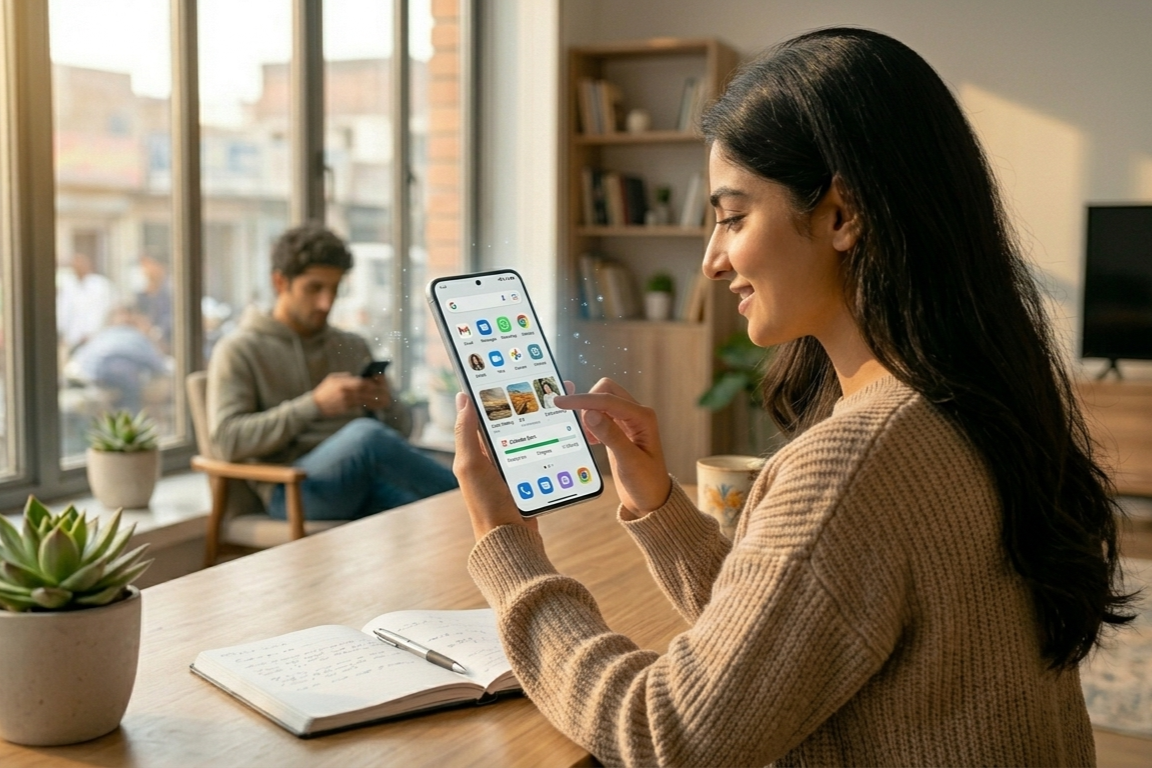
Let’s be real for a second—almost everyone has at least one app on their phone they’d rather keep private.
It might be a personal chat app, a banking app, or even just something you don’t want others casually opening when they’re using your phone.
I’ve personally had moments where someone asked, “Can I use your phone for a second?” and suddenly I became very aware of what apps were sitting on my home screen.
If you’ve ever felt like that, you’re not alone.
The good news is, Android gives you multiple ways to hide apps. And the best part? You don’t need to be a tech expert to do it.
Let’s go through the easiest and most practical methods.
1. Use Your Phone’s Built-in App Hiding Feature

Many Android phones already come with a built-in option to hide apps.
Brands like Samsung, Xiaomi, Oppo, and OnePlus include this feature in their settings or launcher.
If you’re using a Samsung phone, for example, you can check inside Samsung One UI.
Here’s how it usually works:
- Long press on your home screen
- Tap Settings
- Look for Hide Apps
- Select the apps you want to hide
Once hidden, the apps won’t appear on your home screen or app drawer.
Honestly, this is the easiest method if your phone supports it.
2. Use a Secure Folder or Private Space
Some Android phones offer something even better than hiding apps—they let you lock them inside a private folder.
For example, Samsung users can use Secure Folder, which adds an extra layer of protection.
Apps inside this folder:
- don’t appear in normal app lists
- require a password or fingerprint
- stay completely separate
This is perfect if you want both privacy + security.
And to be honest, it feels much safer than just hiding apps.

3. Use a Third-Party Launcher
If your phone doesn’t have a built-in option, don’t worry—this is where launchers come in.
Apps like Nova Launcher allow you to customize your phone and hide apps easily.
Steps (example):
- Install Nova Launcher
- Set it as your default launcher
- Open launcher settings
- Find Hide Apps option
- Select apps you want to hide
The good thing about this method is flexibility.
The downside? Anyone who knows what they’re doing could still find hidden apps in settings.
4. Disable Apps (A Simple Trick)
This one is a bit different—but useful in some cases.
If you don’t use an app often and just want it out of sight, you can disable it.
Steps:
- Go to Settings → Apps
- Select the app
- Tap Disable
This removes the app from your screen.
But keep in mind:
- it only works for some apps
- you won’t be able to use the app until you enable it again
Still, it’s a quick and simple solution.
5. Use App Lock Instead of Hiding
Here’s something many people don’t realize…
You don’t always need to hide apps—you can just lock them.
App lock apps let you:
- protect apps with password
- use fingerprint lock
- block access completely
So even if someone finds the app, they can’t open it.
Sometimes this is actually a better option than hiding.
Because let’s be honest—if someone really wants to find something, they probably will.
6. Create a “Hidden” Folder Trick
This is a simple trick that doesn’t require any app.
You can create a folder and move apps inside it, then:
- rename it to something boring (like “Tools”)
- place it on the last home screen
It’s not true hiding, but it works surprisingly well.
Most people won’t go digging through random folders.
7. Use Guest Mode or Multiple Users
Some Android phones allow you to create a guest mode or multiple user profiles.
This is useful when someone else uses your phone.
In guest mode:
- your personal apps are hidden
- your data stays private
- only basic apps are visible
It’s like giving someone a “clean version” of your phone.

Final Thoughts
Hiding apps on Android isn’t complicated—but choosing the right method depends on what you actually want.
If you just want to clean your screen → use built-in hiding
If you want real privacy → use secure folder or app lock
If you want full control → try a launcher
Personally, I think combining app lock + hiding is the best approach.
Because at the end of the day, it’s not just about hiding apps—it’s about feeling comfortable handing your phone to someone without worrying.
And honestly, that peace of mind matters more than anything.
FAQs
Q1. Can hidden apps still be found?
Ans: Yes, in some cases. Tech-savvy users can find them through settings unless they are secured with a lock or private folder.
Q2. Is it safe to use third-party launchers?
Ans: Yes, as long as you download trusted apps like Nova Launcher from official sources.
Q3. What is the best way to hide apps completely?
Ans: Using a secure folder or app lock provides the highest level of privacy.