

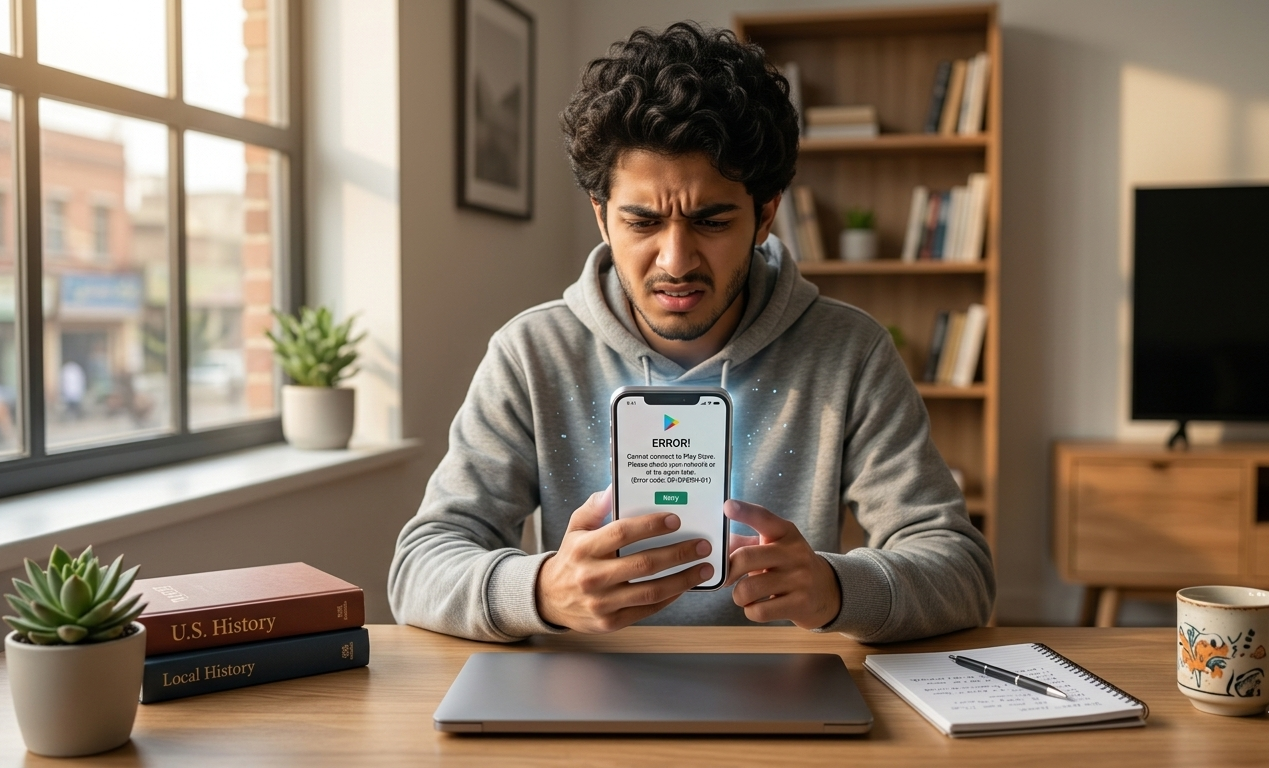
You open the Google Play Store to download an app, and suddenly… nothing works.
Maybe the download just stays stuck at 0%. Maybe it keeps saying “Download Pending.” Or worse, you see some random error code that doesn’t explain anything at all.
Honestly, this is one of those problems that can instantly ruin your mood—especially when you need an app quickly.
The frustrating part? Everything else on your phone might be working perfectly fine.
But here’s the good news: most Play Store errors are not serious at all. In fact, they’re usually caused by small issues like temporary glitches, internet problems, or outdated app data.
I’ve seen this happen many times, and surprisingly, the fix is often much simpler than people expect.
So before you think about resetting your phone or going to a technician, try these solutions first.
1. Restart Your Phone (Yes, It Still Works)
Let’s start with the most basic fix—and honestly, one of the most effective.
Restarting your phone might sound too simple, but it clears temporary system bugs that can interfere with apps like the Play Store.
Here’s the thing: your phone is constantly running apps in the background. Sometimes those processes get stuck, and that’s when issues start appearing.
A quick restart refreshes everything.
What to do:
- Hold the power button
- Tap Restart
- Wait for the phone to turn back on
Then open the Play Store again.
You’d be surprised how often this alone fixes the problem.
2. Check Your Internet Connection Properly
This is where many people make a mistake—they assume their internet is working just because they’re connected.
But in reality, the connection might be weak or unstable.
The Play Store needs a strong and stable connection to download apps properly.
Try this:
- Switch from WiFi to mobile data (or vice versa)
- Turn Airplane mode ON for 10 seconds, then OFF
- Move closer to your router
Sometimes the issue isn’t your phone—it’s just the connection acting up.

3. Clear Play Store Cache (Quick and Effective)
If restarting didn’t work, this is your next best option.
Apps store temporary files (called cache) to load faster. But over time, this data can become corrupted and cause errors.
Clearing the cache removes those broken files.
Steps:
- Open Settings
- Go to Apps
- Tap Google Play Store
- Open Storage
- Tap Clear Cache
Don’t worry—this won’t delete your apps or personal data.
It’s a safe and very common fix.
4. Clear Data for a Fresh Start
If the problem is still there, go one step further and clear the app’s data.
This basically resets the Play Store completely.
Think of it like restarting the app from zero.
Steps:
- Go to Settings → Apps → Google Play Store
- Tap Storage
- Select Clear Data
When you open the Play Store again, it might feel slightly slower at first. That’s normal.
But in many cases, this step fixes errors that cache clearing alone can’t solve.
5. Make Sure Your Phone Has Enough Storage
Here’s something people often ignore.
If your phone storage is almost full, apps won’t download properly—even if everything else looks fine.
The Play Store needs some free space to install apps.
Take a quick look at your storage and remove things you don’t need:
- Old videos or photos
- Unused apps
- Large files sitting in downloads
Even freeing up 1–2 GB can make a big difference.
6. Update the Play Store and Your Phone
Sometimes the issue isn’t a bug—it’s just outdated software.
Updates fix hidden problems and improve performance.
Here’s what you can do:
- Open Play Store → Settings → About
- Check for updates
Also, check your phone’s system updates:
- Go to Settings → System → Software Update
Keeping everything updated helps prevent many issues before they even start.
7. Remove and Add Your Google Account Again
This might sound like a big step, but it’s actually very effective.
Since the Play Store depends on your Google account, any syncing issue can cause errors.
Removing and adding the account again refreshes everything.
Steps:
- Go to Settings → Accounts
- Select your Google account
- Tap Remove Account
- Add it again
It may feel like a hassle, but it often fixes stubborn problems that nothing else solves.
8. Check Date and Time Settings (Surprisingly Important)
This is one of those small things people rarely think about.
If your phone’s date and time are incorrect, it can cause Play Store errors.
Why? Because the app relies on accurate time to sync with servers.
Fix:
- Go to Settings → Date & Time
- Enable Automatic Date & Time
It’s a small step, but it can fix unexpected issues.
9. Disable VPN (If You’re Using One)
If you’re using a VPN, it might interfere with Play Store connections.
Sometimes the store can’t properly connect to servers through certain VPN locations.
Try turning off your VPN and then opening the Play Store again.
This simple check can save you a lot of frustration.
Final Thoughts
Play Store errors can feel confusing at first, especially when there’s no clear explanation.
But the truth is, most of these issues come from small problems—temporary glitches, storage limits, or connection issues.
The key is not to panic.
Start with the simple fixes like restarting your phone or checking your internet. Then move to clearing cache and data if needed.
In most cases, one of these steps will get the Google Play Store working again within minutes.
And once you’ve fixed it once, you’ll know exactly what to do next time.
FAQs
Q1. Why does Google Play Store say “Download Pending”?
Ans: This usually happens when multiple apps are trying to update at the same time or when there is a network issue.
Q2. Is it safe to clear Play Store data?
Ans: Yes, it’s completely safe. It only resets the app and does not delete your installed apps.
Q3. Why can’t I install apps even with internet?
Ans: This can happen due to low storage space, account issues, or corrupted cache data.