


You open your laptop, click on the WiFi icon, select your network… and then nothing happens. The laptop either refuses to connect, or it keeps saying “Unable to connect to this network.”
If this has ever happened to you, you know how frustrating it can be. Especially when you need the internet for work, an online meeting, or even just watching a quick video.
The good news is that WiFi connection problems are usually not as serious as they seem. In many cases, the issue is caused by something small — a temporary network glitch, a router hiccup, or a simple settings problem on your laptop.
I’ve personally seen this happen many times, and surprisingly, the solution is often very simple.
So before you start worrying or calling your internet provider, try the fixes below. One of them will likely get your WiFi working again.
1. Restart Your Laptop and Router
Let’s start with the classic fix — restart everything.
It might sound too basic, but restarting devices clears temporary bugs and connection errors that build up over time.
Here’s the thing: routers and laptops are basically small computers. Just like phones, they sometimes need a fresh start.
Try this:
- Turn off your laptop completely.
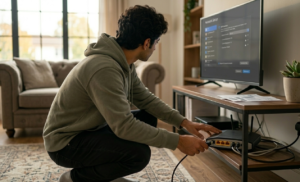
- Unplug your WiFi router.
- Wait about 30 seconds.
- Plug the router back in and wait for the lights to stabilize.
- Turn your laptop back on and reconnect.
Many people skip this step because it seems too simple. But honestly, it fixes WiFi issues more often than you might expect.
2. Check If WiFi Is Turned On
This might sound obvious, but sometimes WiFi accidentally gets turned off.
Most laptops have a WiFi toggle key on the keyboard. It usually has a small antenna symbol and works with the Fn key.
For example, pressing something like Fn + WiFi key may turn wireless connectivity back on.
If you’re using Microsoft Windows, you can also check this in the settings menu:
Settings → Network & Internet → WiFi
Make sure the WiFi switch is turned ON.
You’d be surprised how many connection problems are solved by this one small check.
3. Forget the Network and Reconnect
Sometimes your laptop stores incorrect connection information for a WiFi network. When that happens, it keeps trying to connect using outdated settings.
A quick trick that often works is to forget the network and reconnect.
Here’s how:
- Open your WiFi settings.
- Find your network name.
- Click Forget Network.
- Search for the network again.
- Enter the password and reconnect.
Think of it as resetting the relationship between your laptop and the router.
4. Run the Built-in Network Troubleshooter
If you’re using Microsoft Windows, there’s actually a tool designed specifically to find network problems automatically.
To run it:
- Go to Settings
- Open Network & Internet
- Click Network Troubleshooter
Your laptop will scan for issues and try to repair them.
Now, to be honest, it doesn’t always fix everything. But when it does work, it saves a lot of time.
5. Update Your WiFi Drivers
Another common reason WiFi stops working is outdated network drivers.
Drivers are small pieces of software that allow your laptop hardware to communicate with the operating system. If they become outdated or corrupted, your WiFi adapter may stop working correctly.
Updating them is fairly simple:
- Open Device Manager
- Expand Network Adapters
- Right-click your WiFi adapter
- Click Update Driver
After updating, restart your laptop and try connecting again.
This fix is especially useful if the problem started after a system update.

6. Check If Other Devices Can Connect
Before assuming the problem is your laptop, try connecting another device to the same WiFi network.
For example, try connecting your phone or tablet.
If other devices connect without any problem, then the issue is most likely on your laptop.
But if nothing connects, the router or internet service might be the real problem.
Doing this quick check can save you a lot of unnecessary troubleshooting.
7. Move Closer to the Router
Here’s something people often forget: WiFi signals get weaker with distance.
Walls, furniture, and even electronic devices can interfere with the signal.
If your laptop is far away from the router, the network might appear but fail to connect properly.
Try moving closer to the router and see if the connection improves.
Sometimes the simplest solution is the correct one.
Final Thoughts
WiFi problems can feel annoying in the moment, but they’re usually easy to fix.
In most cases, restarting your router, reconnecting to the network, or updating drivers solves the issue quickly.
The key is to go through the solutions step by step instead of panicking.
And if none of these fixes work, the issue may be related to your internet provider or router hardware. But thankfully, that’s much less common.
So the next time your laptop refuses to connect to WiFi, don’t stress — just try the steps above and your connection will likely be back in a few minutes.

Frequently Asked Questions
Q1. Why does my laptop show WiFi connected but there is no internet?
Ans: This usually means your laptop connected to the router, but the router itself isn’t connected to the internet.
Q2. Why does my laptop keep disconnecting from WiFi?
Ans: This can happen due to weak signal strength, outdated drivers, or interference from other nearby wireless networks.
Q3. Can restarting the router really fix WiFi issues?
Ans: Yes. Restarting the router clears temporary network errors and refreshes the connection, which often solves the problem.