
The Windows 11 Slump: It Is Not Just Your Imagination
We have all been there. You buy a brand new PC, and for the first month, it feels like a rocket ship. Windows 11 looks beautiful with its rounded corners and frosted glass effects. But six months later, you notice it. The boot time takes a few seconds longer. The Start menu has a tiny delay. Your fans start spinning louder just because you opened three Chrome tabs.
It is easy to blame the hardware and think you need a RAM upgrade, but the reality is usually much simpler. Windows 11 is a “heavy” operating system. It comes packed with visual eye candy, background services, and “telemetry” (Microsoft’s way of watching how you use your PC) that eat up resources. In this guide, we are going to perform a digital tune-up. We are going to trim the fat and get your PC back to that day-one speed without spending a single dollar.
Quick Answer: How to quickly speed up Windows 11?
The most immediate gains come from three moves: 1. Disable Startup Apps in the Task Manager to free up RAM. 2. Turn off Transparency and Animations to reduce the load on your GPU. 3. Change your Power Plan to Best Performance. These three steps alone can make a PC feel 30% faster instantly.
-
The Startup Audit: Stopping the “Hidden” Passengers
Imagine trying to run a marathon while carrying five backpacks you didn’t know you were wearing. That is what your PC does when you have too many startup apps. Every time you install software like Spotify, Steam, Zoom, or Microsoft Teams, they “kindly” offer to start the moment you log in.
Most of these do not need to be running until you actually click on them. By disabling them, you reduce the “Background Process” count, which frees up your CPU to focus on what you are actually doing.
How to reclaim your boot speed:
- Press Ctrl + Shift + Esc on your keyboard. This is the secret handshake for the Task Manager.
- Look at the left-hand menu and click the Startup apps icon (it looks like a little speedometer).
- Look at the Startup impact column. Anything labeled “High” is your primary target.
- Right-click apps you do not need every single day and select Disable. Do not worry; this does not delete the app. It just means the app waits for you to open it manually.
-
Stripping Away the “Eye Candy”
Windows 11 is obsessed with looking “premium.” It uses a feature called Mica and Acrylic transparency that makes windows look like frosted glass. It also uses subtle animations for every single window you minimize or maximize.
While these look great on a $2,000 gaming rig, they can cause “micro-stutter” on average laptops. If you value speed over beauty, turning these off is a game changer.
How to simplify the UI:
- Go to Settings > Personalization > Colors.
- Find Transparency effects and toggle it to Off. You will notice your taskbar becomes solid, and the system feels instantly more responsive.
- Next, head to Settings > Accessibility > Visual effects.
- Turn off Animation effects. Now, instead of windows “sliding” down, they will snap instantly. It feels much faster.
-
Unleash the Power: Switching to Best Performance
By default, Windows 11 is a bit of a “tree hugger.” It tries to save energy by “throttling” your CPU, which is great for battery life but terrible for speed. If you are plugged into a wall outlet, there is no reason to let Windows hold your processor back.
How to unlock your CPU:
- Open Settings and go to System > Power & battery.
- Look for the Power mode dropdown menu.
- Change it from “Balanced” to Best performance.
This tells Windows to stop trying to save pennies on your electric bill and start giving you the full clock speed of your hardware.
-
Storage Sense: The Automatic Janitor
Windows 11 creates a massive amount of “digital dust.” Every time you update Windows, it keeps a copy of the old files just in case. Every time you browse the web, it saves temporary cache files. Over time, this can take up 20GB or 30GB of space. An SSD (Solid State Drive) actually slows down as it gets full, so keeping it clean is vital for speed.
How to automate the cleaning:
- Go to Settings > System > Storage.
- Turn on Storage Sense. This will automatically delete temporary system and app files.
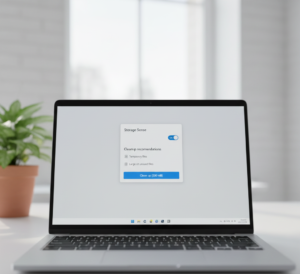
- Tap on Cleanup recommendations. Here, Windows will show you “Previous Windows Installations.” These are often 10GB+ in size. If your PC is running fine after an update, delete these immediately.
-
The “VBS” Gaming Secret
If you use your PC for gaming, there is a hidden security feature called Virtualization-Based Security (VBS) that might be stealing your frames. Microsoft enabled this by default in Windows 11 to protect against sophisticated attacks, but benchmark tests show it can drop gaming performance by up to 25% on certain CPUs.
How to check it:
- Click Start and type Core Isolation.
- Look for Memory Integrity.
- If you are a casual user, leave it ON for security. If you are a hardcore gamer who needs every single FPS (frames per second), turning this OFF can give you a massive boost. (Note: You will need to restart your PC for this to take effect).
More Human “Pro-Tips” for a Snappy PC
- The Weekly Restart: Many people just close the lid of their laptop. This puts it into “Sleep” or “Hibernate.” This does not clear the RAM. A full restart once a week clears out “zombie” processes and memory leaks that “Sleep” mode keeps alive.
- Uninstall Bloatware: Manufacturers like HP, Dell, and Lenovo love to ship PCs with “Trial” antivirus software or “Support Assistants.” These are almost always unnecessary and run heavy background scans. If you do not use it, uninstall it.
- The Search Indexing Trick: If your PC gets slow while you are searching for files, go to Settings > Privacy & security > Searching Windows and change it to Classic instead of “Enhanced.” This stops Windows from constantly scanning every deep corner of your hard drive.
Final Thoughts: Maintaining the SPOILZZ Standard
Speeding up Windows 11 is not about a single “magic button.” It is about cumulative gains. If you disable five startup apps, turn off transparency, and switch your power plan, those tiny improvements add up to a PC that feels brand new.
You do not need a new computer every two years. You just need to know how to manage the one you have. Keep your SSD at least 20% empty, restart your machine regularly, and keep those background apps in check. Your PC (and your patience) will thank you.
Frequently Asked Questions
Q1: Will turning off visual effects make my PC look ugly?
Ans: Ugly is subjective! It will look more “flat” and less modern, but the trade-off is a much snappier interface. You can always turn them back on if you miss the frosted glass look.
Q2: Is it safe to disable all startup apps?
Ans: Yes. Disabling a startup app does not delete it. It just prevents it from starting automatically. The only things you should usually leave enabled are your audio drivers (like Realtek) and your security software.
Q3: Does Windows Update slow down my computer?
Ans: Sometimes the actual process of downloading an update causes a temporary slowdown. However, the updates themselves often include “KB” patches that fix performance bugs, so it is always better to stay updated.