


Have you ever noticed your phone battery dropping faster than it used to? Maybe it was fine last year, but now it seems like you’re charging it more often throughout the day.
Honestly, this happens to almost everyone after using a smartphone for a while. Batteries don’t stay perfect forever. They slowly lose their ability to hold the same amount of power they did when the phone was brand new.
The good thing is that devices made by Apple actually let you check your battery’s condition in just a few seconds. There’s a built-in setting that shows how healthy your battery still is and whether it might need replacement sometime in the future.
If you’ve never looked at it before, don’t worry. It’s surprisingly simple.
Start by Opening the Battery Settings
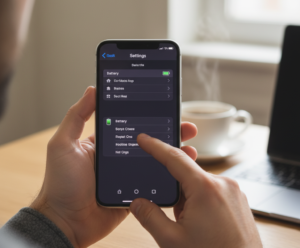
First, unlock your iPhone and open the Settings app. Scroll down until you see the Battery option and tap on it.
Inside that section, you’ll find something called Battery Health & Charging. This is basically where your phone tells you how your battery is doing. It might sound technical, but the information there is actually very easy to understand.
Most people only discover this setting when their battery starts acting strange, but it’s useful to check it once in a while anyway.
Look at the Maximum Capacity Number
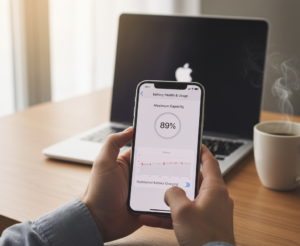
The first thing you’ll notice is Maximum Capacity, shown as a percentage.
In simple words, this number tells you how strong your battery still is compared to when it was brand new.
For example:
- 100% means your battery is still like new
- 90–95% means it’s slightly worn but still very healthy
- Around 80% or lower usually means the battery is getting older
The truth is, most people won’t notice much difference until the battery drops closer to that 80% range.
So if your phone shows something like 92% or 90%, that’s still completely normal.
Check Peak Performance Capability
Right below the capacity percentage, you’ll see another section called Peak Performance Capability. This part tells you whether your phone can still run normally without slowing down. If the battery is in good condition, you’ll see a message saying that your device supports normal performance.
But if the battery becomes too weak, your phone might reduce performance slightly to prevent sudden shutdowns. It sounds annoying at first, but it’s actually a safety feature designed to protect the device.
Most users never even notice it happening.
Sometimes the Battery Isn’t the Real Problem
Here’s something interesting many people don’t realize.
Sometimes the battery itself isn’t the issue at all. Certain apps can drain power very quickly, especially if they keep running in the background. Social media apps, video apps, and navigation apps are common examples.
While you’re still in the battery settings, scroll down a little and check the Battery Usage by App section. You might be surprised which apps are using the most energy on your phone. In many cases, closing or limiting those apps can improve battery life more than anything else.
Signs Your Battery May Be Getting Old
Even if you don’t check the settings often, your daily experience with the phone usually gives some clues.
For example, you might notice:
- The battery drains much faster than before
- The percentage drops suddenly
- Your phone shuts down unexpectedly
- Charging seems to take longer
If you start seeing several of these signs together, there’s a good chance the battery is simply wearing out.
And honestly, that’s completely normal after a few years of use.
When It Might Be Time to Replace the Battery
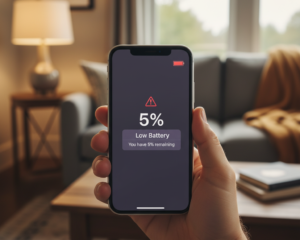
Most smartphone batteries are designed to last around two to three years, depending on how heavily the phone is used. According to Apple, once battery health drops below about 80%, performance may begin to decline more noticeably.
At that point, replacing the battery can make a big difference. In fact, many people say their phone feels almost new again after getting a fresh battery installed.
And compared to buying a new phone, replacing the battery is usually much cheaper.
Final Thoughts
The battery is one of the few parts of a smartphone that naturally wears out over time. But the good news is that checking its condition only takes a few seconds.
By looking at the battery health settings every once in a while, you can get a clear idea of how your phone is doing. If the percentage is still above 85–90%, there’s usually nothing to worry about.
But if it’s getting closer to 80%, it might be a sign that your battery is slowly reaching the end of its lifespan.
Either way, knowing this information helps you avoid surprises—and that’s always a good thing.
FAQs
Q1. What battery health percentage is considered good?
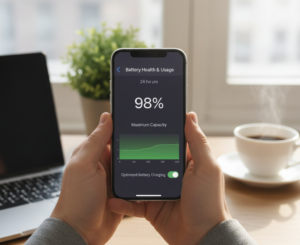
Ans: Anything above about 85–90% is generally considered very good for an iPhone battery.
Q2. How often should I check my battery health?
Ans: You don’t need to check it constantly. Once every few months is usually enough.
Q3. Does charging overnight damage the battery?
Ans: Not really. Modern iPhones use smart charging features that slow down charging once the battery reaches higher levels, which helps protect it.